 ShieldBrain
How to Block Instagram Reels Without Deleting Instagram
Quick answer: Instagram has no built-in switch to remove Reels. To block the Reels feed on Android while keeping your DMs, stories and normal feed, use a feed-level blocker like ShieldBrain — it blocks only the Reels surface, not the app.
The problem: Reels is the stickiest part of Instagram
Instagram Reels is Instagram's short-form vertical video feed. One tap on a reel opens an infinite, algorithmically ranked stream where each upward swipe loads a new video tuned to keep you watching. Most people don't open Instagram intending to watch Reels — they open it for messages or stories, get pulled into one reel, and surface 45 minutes later. That's not a willpower failure; the feed is designed to produce exactly that outcome.
Deleting Instagram fixes it — but you lose DMs, close friends' stories, and often real social or business connections. That's why most people who delete the app reinstall it within weeks. The better fix is surgical: remove the Reels feed, keep everything else.
What Instagram's own settings can (and can't) do
Daily time limit reminders
In Settings → Your activity → Time spent, you can set a daily reminder. It's a dismissible popup — one tap and you're back to scrolling.
Muting suggested content
Instagram lets you temporarily reduce suggested posts and mark reels "Not interested" one at a time. The Reels tab itself never goes away, and the algorithm quickly finds new hooks.
Quiet mode
Quiet mode silences notifications during set hours but does nothing about the feed once you open the app.
Bottom line: Instagram's tools nudge; they don't block. Instagram's business depends on your watch time, so a real off-switch will never ship.
How to block Instagram Reels with ShieldBrain (step by step)
- Install ShieldBrain — free on Google Play, no account needed.
- Enable the Accessibility Service when prompted. This is the one-time Android permission that lets ShieldBrain recognise the Reels feed. It is used only for detecting and counting short-video feeds; nothing leaves your phone.
- Toggle "Block Instagram Reels" ON. From now on, opening the Reels feed shows a friendly block screen instead. DMs, stories, search, profiles and your main feed all keep working.
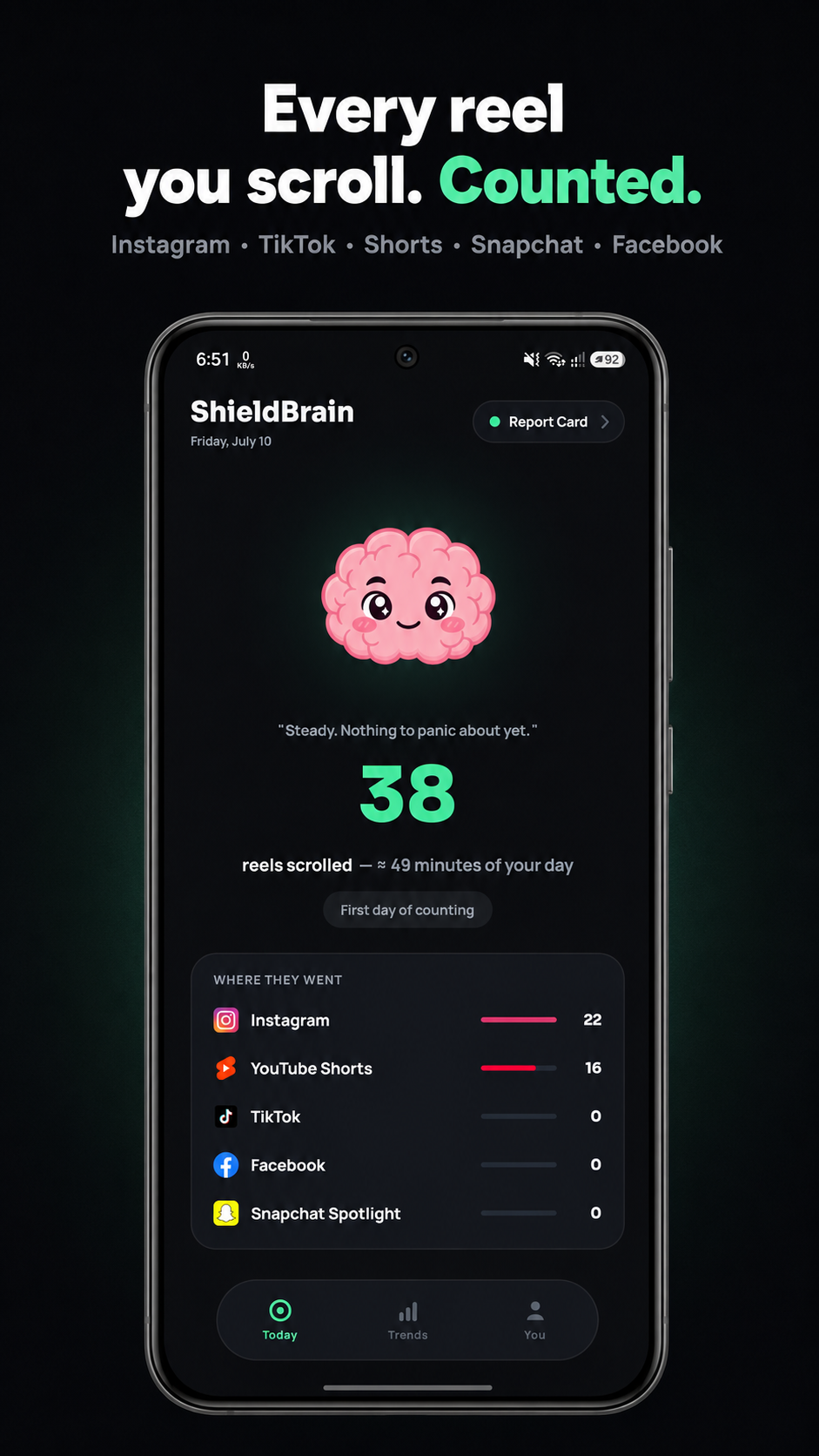
Not ready to block yet? Run ShieldBrain's reels counter for a few days first. Seeing your real daily number — most people underestimate it by half — makes the block feel like relief, not restriction. Read: How many reels do you actually watch a day?
Tips
- Block Reels everywhere at once. If Instagram Reels is blocked but YouTube Shorts and TikTok aren't, your thumb just changes address. ShieldBrain covers all five platforms with individual toggles.
- Move Instagram off your home screen. Extra friction compounds with the feed block.
- Tell a friend your Brain Report Card grade. ShieldBrain's weekly shareable report adds gentle accountability.
Common mistakes
- Deleting the app in a burst of motivation. It usually ends in reinstalling and a rebound binge. Feed-level blocking is sustainable because you lose nothing you actually value.
- Trusting time-limit popups. A reminder you can dismiss is a suggestion, not a block.
- Not measuring first. Without a baseline number you can't see progress — and progress is what keeps the habit change alive.
FAQ
Can I turn off Reels on Instagram completely?
Not with Instagram's own settings — the Reels tab always remains. A feed-level blocker like ShieldBrain is required for a full block on Android.
Can I block Reels but keep my DMs?
Yes. ShieldBrain blocks only the Reels feed; DMs, stories, search and your main feed keep working.
Is there a free Instagram Reels blocker for Android?
Yes — ShieldBrain is free, on-device, and needs no account. It also counts your reels so you can see the habit shrinking.
Keep Instagram. Lose the Reels trap.
ShieldBrain counts every reel and blocks the feed with one tap — free and 100% private.
Get ShieldBrain on Google PlayRelated guides: Block YouTube Shorts · Block TikTok scrolling · Stop doomscrolling · Dopamine detox guide